
Introduction to Firebase Storage #2: Retrieve & Delete Files

Introduction to Firebase Storage #2: Retrieve & Delete Files
Hello everyone, in this article, we shall continue from where we left off in the previous article on How to Upload Files to Firebase Cloud Storage. We will now learn how to retrieve and delete files from Firebase Cloud Storage.
Retrieve files from Firebase
Refer to the previous article to learn how to set up Firebase Cloud Storage and create our project that we will continue building in this article.
Step 1: Create allImages state
Initialize an array called allImages. This array will hold all the image URLs retrieved from Firebase.
const [allImages, setImages] = useState([]);
Step 2: getFromFirebase
Let's create a function called getFromFirebase that will handle retrieving all files from Firebase.
In this function, we want to:
- 1: Get reference to our storage bucket
- 2: Use
listAll()to get all the reference object inside it
listAll() returns the reference to the images, not the images themselves. It has 2 properties: items and prefixes. Items are the image reference whereas prefixes are folders, in case you have nested folders in storage.
Below is an example of what listAll() returns when I have 8 images in storage.
- 3: Then loop through each
itemsreference withforEach()to obtain the image URL withgetDownloadURL() - 4: Finally, add this URL into the
allImagesarray withsetImages()
  const getFromFirebase = () => {
    //1.
    let storageRef = storage.ref();
    //2.
    storageRef.listAll().then(function (res) {
        //3.
        res.items.forEach((imageRef) => {
          imageRef.getDownloadURL().then((url) => {
              //4.
              setImages((allImages) => [...allImages, url]);
          });
        });
      })
      .catch(function (error) {
        console.log(error);
      });
  };
Step 3: Display Images
We can then create a component where we can display our images from the URLs in theallImages array.
 <div id="photos">
     {allImages.map((image) => {
        return (
           <div key={image} className="image">
              <img src={image} alt="" />
              <button onClick={() => deleteFromFirebase(image)}>
               Delete
              </button>
           </div>
         );
     })}
</div>
On each image, we can have a Delete button to allow users to delete the picture they clicked on. Let's look at how we can implement the deletedFromFirebase() for the button.
Delete Files From Firebase
Step 4: deleteFromFirebase
Our deleteFromFirebase function takes in our image URL as an argument and deletes that URL from Firebase.
Here's how we can implement the function:
- Using
refFromURL(), we can get the image reference from Firebase Storage of the image we want to delete. - Then use
.delete()to delete the image from Firebase. - Finally, we remove that URL from our
allImagesarray.
const deleteFromFirebase = (url) => {
    //1.
    let pictureRef = storage.refFromURL(url);
   //2.
    pictureRef.delete()
      .then(() => {
        //3.
        setImages(allImages.filter((image) => image !== url));
        alert("Picture is deleted successfully!");
      })
      .catch((err) => {
        console.log(err);
      });
  };
And the result!
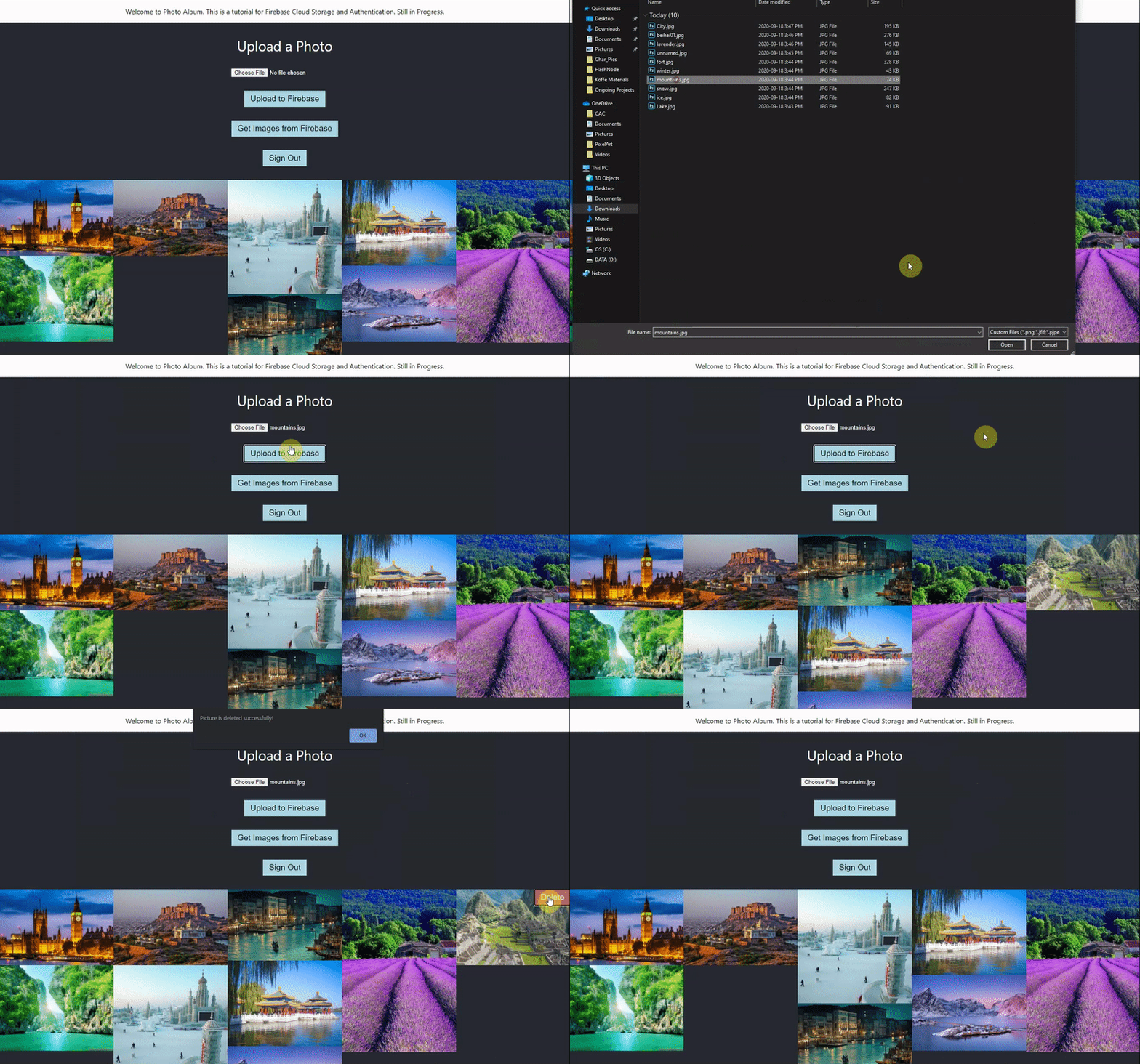
And that's how we can upload images, retrieve and display them and delete them!
To view the project I made for this tutorial, please visit the repo here. And please read the Firebase Documentation for more information.
Thank you for reading. I hope it's been a helpful 2-part read to help you get started with using Firebase Cloud Storage. As always, please do not hesitate to share any thoughts in the comments below. Till next time, cheers!